
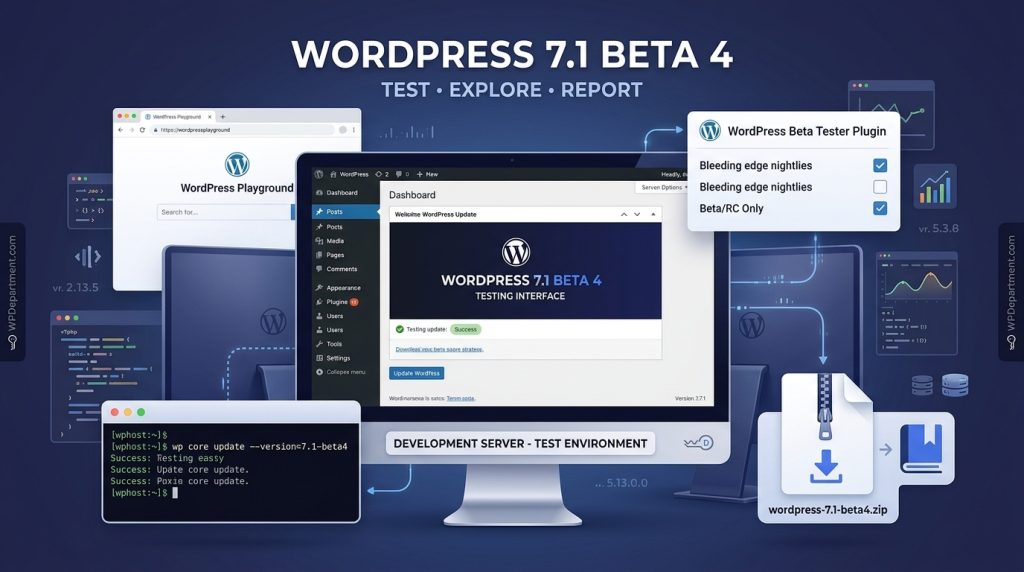
In this guide, we’ll look at the different ways you can install and test WordPress 7.1 Beta 4.
Why Test WordPress 7.1 Beta 4?
Beta testing gives WordPress developers and website owners an opportunity to test their existing setup against the upcoming release.
You can use a beta installation to:
- Test themes and plugins for compatibility.
- Identify potential PHP or JavaScript errors.
- Check custom WordPress functionality.
- Test WooCommerce and other integrations.
- Evaluate changes to the WordPress admin experience.
- Report bugs before the stable release.
- Prepare websites and client projects for the upcoming WordPress release.
Important: Don't Test Beta Software on a Production Website
Before installing WordPress 7.1 Beta 4, create a separate testing environment.
A staging website, local development installation, or temporary test server is ideal.
Avoid installing beta software on:
- E-commerce websites processing real orders
- Membership websites
- Client production websites
- Websites containing important or irreplaceable data
- Mission-critical applications
If something goes wrong during testing, you should be able to delete the installation or restore it without affecting your live website.
How to Test WordPress 7.1 Beta 4
Method 1: WordPress Beta Tester Plugin
One of the easiest options is to use the WordPress Beta Tester plugin.
Install and activate the plugin on a development or staging WordPress installation.
After activation, open the plugin's settings and select:
Bleeding edge → Beta/RC Only
This allows your test installation to receive the appropriate pre-release WordPress builds.
Once configured, you can use the normal WordPress update interface to install the available beta version.
This method is particularly convenient if you regularly test WordPress development releases and want to switch between testing versions without manually downloading ZIP files.
Method 2: Direct Download
You can also install WordPress 7.1 Beta 4 manually by downloading the beta ZIP package.
Download the appropriate WordPress 7.1 Beta 4 ZIP file and install it on a dedicated test website.
If you are replacing an existing development installation, make sure you have a complete backup before proceeding.
A typical manual testing workflow is:
- Back up the installation and database.
- Download the WordPress 7.1 Beta 4 ZIP package.
- Upload and extract the files on your test server.
- Replace the appropriate WordPress core files.
- Visit the WordPress admin area.
- Complete any required database upgrade.
- Test your themes, plugins and custom functionality.
For less technical users, the Beta Tester plugin may be easier than manually replacing core files.
Method 3: Test WordPress 7.1 Beta 4 with WP-CLI
Developers who manage WordPress installations from the command line can use WP-CLI to update a test installation.
For example:
wp core update --version=7.1-beta4
Before running the command, make sure you are inside the correct WordPress installation and that you are working on a development or staging environment.
You can verify the installed version afterwards with:
wp core version
WP-CLI is particularly useful for developers and agencies who manage multiple WordPress environments or automate their testing workflows.
What Should You Test?
Simply installing WordPress 7.1 Beta 4 isn’t enough. The most useful testing involves checking how the new version interacts with the software already running on your website.
Test Your Theme
Check the front end and WordPress admin area carefully.
Look for:
- Broken layouts
- PHP errors
- JavaScript errors
- Missing functionality
- Broken custom templates
- Problems with widgets or blocks
- Changes to custom post types
If you’re using a custom theme, pay particular attention to functionality that relies on WordPress core APIs.
Activate your important plugins one at a time and test their primary functionality.
This is especially important for:
- Page builders
- SEO plugins
- Security plugins
- Caching plugins
- Form plugins
- Membership plugins
- Custom plugins
- ACF-based functionality
- Plugins using WordPress core APIs extensively
If a plugin causes an error, disable other plugins where possible and test again. This can help determine whether the problem is caused by the plugin itself or by an interaction between multiple components.
If you’re testing WordPress 7.1 for an online store, perform a complete test purchase workflow.
Check:
- Product pages
- Cart
- Checkout
- Customer accounts
- Payment gateways
- Order creation
- Emails
- Coupons
- Shipping
- Taxes
- WooCommerce admin screens
Never use real customer orders or payment information on a beta testing installation.
Check for PHP and JavaScript Errors
Test Before You Update Production Websites
One of the biggest advantages of beta testing is that you can identify potential problems before the stable release reaches your production websites.
If you manage websites for clients, consider creating a repeatable testing process:
How to Report Problems
If you discover a genuine WordPress core problem while testing Beta 4, consider reporting it to the WordPress project through the appropriate official channels.
- WordPress version
- PHP version
- Browser and operating system
- Active theme
- Active plugins
- Steps required to reproduce the problem
- Error messages
- Screenshots or relevant logs
Clear reproduction steps make it much easier for developers to investigate an issue.
Keep Following WordPress Development Updates
For developers and agencies, keeping track of WordPress development updates can help you plan compatibility testing and prepare websites for upcoming releases.
Need Help Testing or Maintaining WordPress?
Want to stay up to date with the latest WordPress developments without having to deal with everything yourself?
Keep an eye on WP Department for the latest WordPress updates, maintenance news, security information and practical WordPress guides.
Need Professional WordPress Help?
Whether you’re preparing a website for a major WordPress update, troubleshooting a compatibility problem, or need ongoing WordPress maintenance, our team can help.
Ready to get started?
Final Thoughts
Whatever method you choose, remember the most important rule:
Test beta software on a staging or development environment — never on a production website.
By testing themes, plugins, WooCommerce, custom functionality and integrations ahead of time, you can identify compatibility issues early and make the eventual transition to the stable WordPress 7.1 release much smoother.