
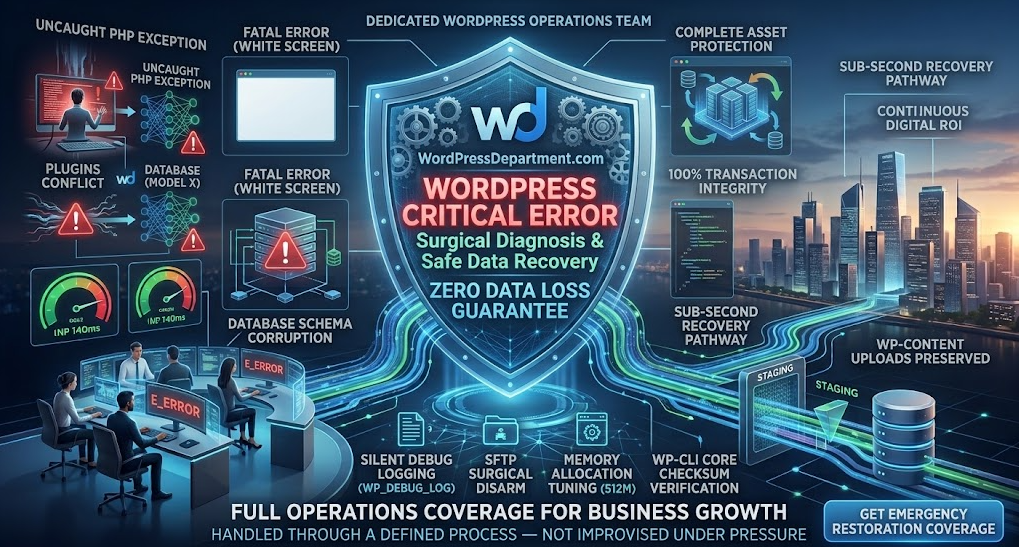
Few sights create more operational panic than navigating to your commercial website and seeing the dreaded white screen:
“There has been a critical error on this website. Please check your site admin email inbox for instructions.”
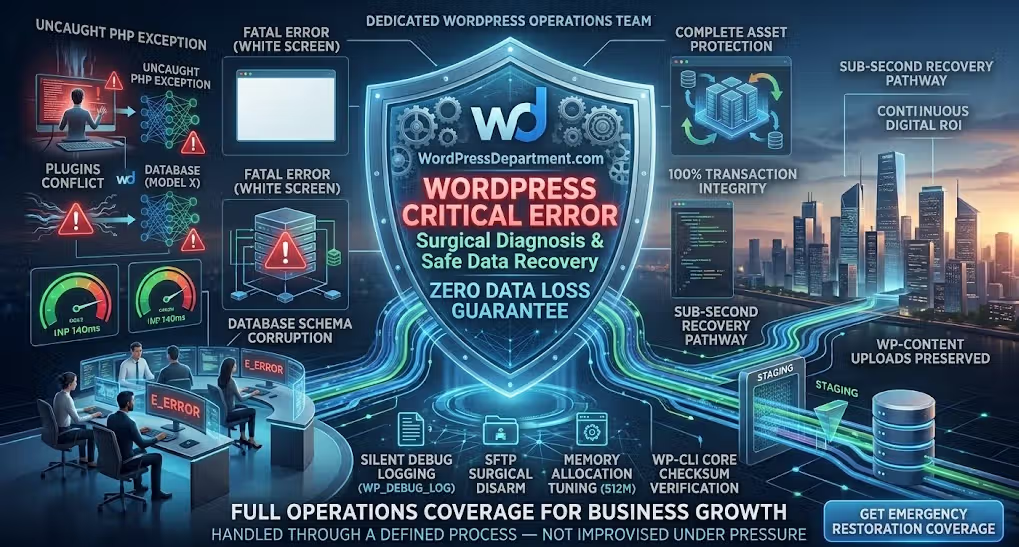
When your digital platform generates leads, hosts subscription memberships, or processes customer checkouts, downtime translates directly into lost revenue, wasted advertising spend, and compromised brand equity.
The immediate temptation for many operators is to panic: restoring old backups that wipe out the day’s latest transactions, clicking random reset buttons, or reinstalling software blindly.
Rushing into destructive recovery actions is how fatal PHP errors turn into permanent data loss.
At WPDepartment.com, our senior WordPress operations engineers resolve platform-level failures daily. A critical error is not a total catastrophe; it is simply PHP terminating execution because of an unhandled exception or memory constraint.
Here is our step-by-step engineering blueprint to isolate, diagnose, and resolve WordPress critical errors cleanly—while keeping your database and order history 100% intact.
1. The Anatomy of a Critical Error: Why Did Your Platform Halt?
WordPress introduced the human-readable “Critical Error” message to replace the classic White Screen of Death (WSOD). Behind that generic screen, the server encountered a hard E_ERROR or Uncaught Exception during the PHP lifecycle.
┌────────────────────────────────────────────────────────┐
│             COMMON ROOT CAUSES OF CRITICAL ERRORS      │
├────────────────────────────────────────────────────────┤
│ 1. PHP VERSION INCOMPATIBILITY ► Deprecated function   │
│ 2. EXHAUSTED MEMORY ALLOCATION ► Loop exceeding limit  │
│ 3. PLUGIN / THEME COLLISION    ► Conflicting namespaces│
│ 4. CORRUPTED DATABASE SCHEMA   ► Interrupted write lock│
└───────────────────────────┬────────────────────────────┘
                            │  Halted Execution Thread
                            ▼
┌────────────────────────────────────────────────────────┐
│             ISOLATION & PRESERVATION PATHWAY           │
│ 1. Contain Risk ► 2. Extract Log ► 3. Surgical Fix     │
└────────────────────────────────────────────────────────┘
Your data (posts, customer transactions, form entries, product listings) lives in the MySQL database, while your media assets reside in the /wp-content/uploads/ directory. Because a fatal script error almost always stems from execution scripts inside themes, plugins, or core files, your underlying data is almost certainly safe. The priority is preventing destructive actions that overwrite it.
2. The Safe Recovery Framework: Step-by-Step Execution
Step 1: Enable WordPress Debug Logging (Without Exposing Errors to the Public)
// Enable internal debug logging safely without displaying errors to public visitors
define( 'WP_DEBUG', true );
define( 'WP_DEBUG_LOG', true );
define( 'WP_DEBUG_DISPLAY', false );
@ini_set( 'display_errors', 0 );
Save the file and reload the broken page. WordPress will write the exact runtime error directly into /wp-content/debug.log.
PHP Fatal error:  Uncaught Error: Call to undefined function custom_gateway_init()
in /var/www/html/wp-content/plugins/unvetted-plugin/gateway.php on line 84
This diagnostic pinpoint instantly eliminates guesswork: it tells you the exact plugin, file, and line number causing the crash.
Step 2: Leverage WordPress Recovery Mode
When a fatal error occurs, WordPress attempts to dispatch an emergency notification to the administrative email defined in your settings. This email contains:
- The specific plugin or theme responsible.
- A unique Recovery Mode link.
Clicking this link logs you into a sandboxed version of wp-admin where the offending software is automatically deactivated for your administrative session only. From here, you can deactivate the offending plugin with a single click or update it if a hotfix has been pushed by the developer.
Step 3: Surgical Plugin Isolation via SFTP (Zero Data Loss)
If you did not receive the recovery email or cannot access the dashboard, bypass WordPress execution entirely via SFTP:
- Navigate to /wp-content/plugins/.
- Locate the folder corresponding to the plugin identified in your debug.log (e.g., /unvetted-plugin/).
- Rename the directory to /unvetted-plugin-disabled/.
Step 4: Resolve PHP Memory Exhaustion Limits
If your log displays an Allowed memory size of X bytes exhausted error, an operational script (such as an automated sync, unoptimized image processing job, or heavy report generator) has exceeded your server’s assigned memory cap.
PHP
// Increase PHP Memory Allocation for Production Execution
define( ‘WP_MEMORY_LIMIT’, ‘512M’ );
define( ‘WP_MAX_MEMORY_LIMIT’, ‘1024M’ );
Step 5: Switch to a Core Fallback Theme
3. Code Architecture: Defensive Latency & Error Gate
To stop third-party code regressions from bringing down your production environment in the future, implement defensive error handling inside your custom integrations. Below is an architectural pattern showing how to insulate external script calls using structured exception handling:
PHP
getFile(),
$fatal_exception->getLine(),
$fatal_exception->getMessage()
) );
// Allow front-end rendering to proceed without the crashed component
add_action( 'admin_notices', function() use ( $fatal_exception ) {
if ( current_user_can( 'activate_plugins' ) ) {
echo '[Fault Isolated] A component failed to load safely. Check debug.log for details.
';
}
});
}
}
function wpd_execute_critical_business_logic() {
// Custom transaction or data synchronization routines go here
}
4. The Long-Term Fix: How to Prevent Critical Errors Entirely
┌────────────────────────────────────────────────────────┐
│             REACTIVE FIXES VS. PROACTIVE OPERATIONS    │
├────────────────────────────────────────────────────────┤
│ Reactive Approach  ► Live updates • Panic • Downtime   │
│ Proactive Strategy ► Isolated Staging • Visual QA • RUM│
└───────────────────────────┬────────────────────────────┘
                            │  Predictable System Stability
                            ▼
┌────────────────────────────────────────────────────────┐
│             ZERO-DOWNTIME PLATFORM HEALTH              │
│ Clean Database Schema • Tested Deployments • 24/7 Ping │
└────────────────────────────────────────────────────────┘
The only way to guarantee zero critical errors on production is to implement a strict deployment pipeline:
Isolated Staging Sandboxes:
Test all software, theme, and plugin updates in an identical clone of your environment before updating production.
IntAutomated Visual & Functional Regression Tests:
Confirm that checkout gateways, forms, and custom post types function smoothly before code moves live.
Continuous Database Schema Pruning:
Clean transient bloat and optimize database indexes monthly to prevent table deadlocks.
Frequently Asked Questions
Stop Improvising Under Pressure: Partner with WPDepartment
Don’t let unexpected fatal errors, plugin conflicts, and server timeouts threaten your business revenue. Put your platform behind an enterprise-grade engineering operations grid.
At WPDepartment.com, our dedicated support and maintenance frameworks feature isolated staging testing, 24/7 real-time telemetry monitoring, automated malware removal, and sub-second performance optimization.
To understand the company behind these solutions, you can explore Staxtar’s official platform for more technical and business details.