
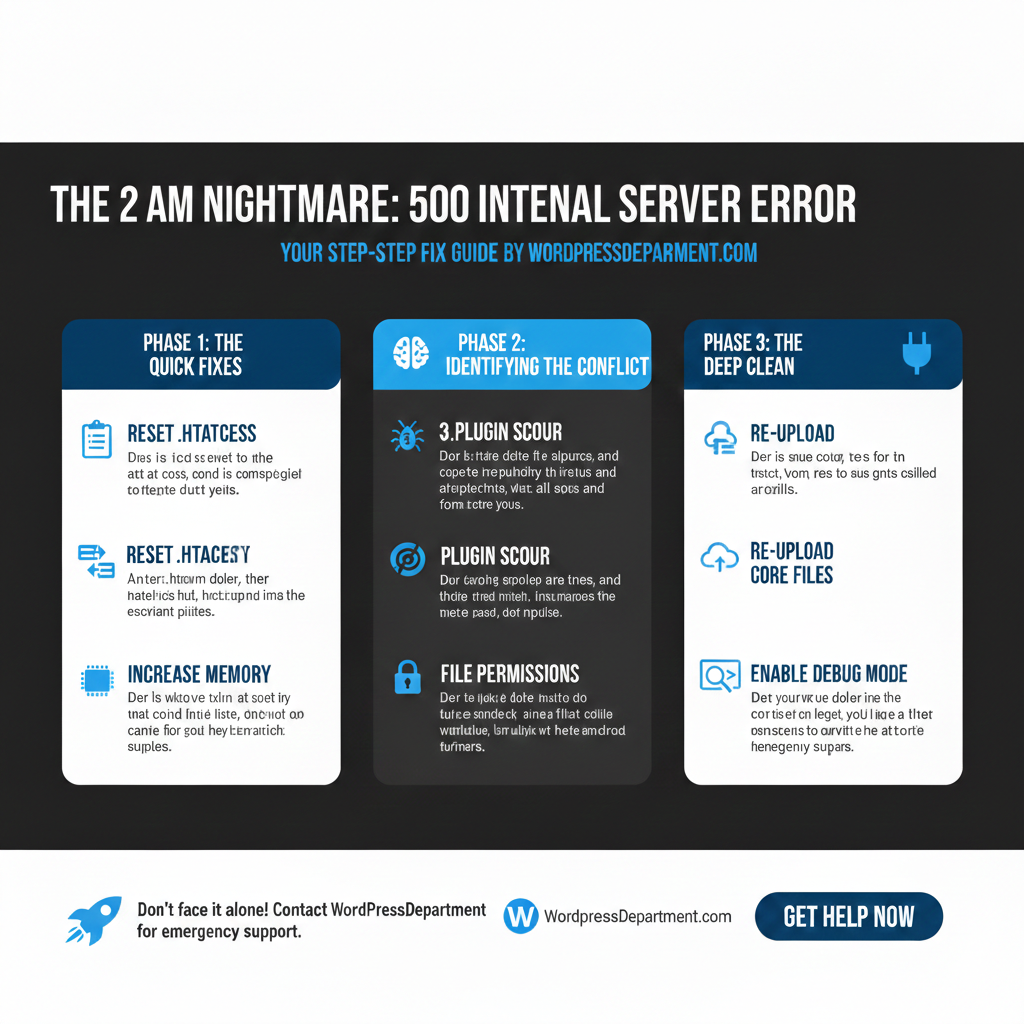
It is every website owner’s worst fear. You visit your site, expecting to see your homepage, and instead, you are greeted by a stark, white screen or a browser message saying “500 Internal Server Error.”
First: Don’t panic. Second: Don’t touch anything yet.
The 500 error is a “catch-all” message. It means your server is confused; it knows something went wrong, but it doesn’t know exactly what. It could be a plugin conflict, a corrupted .htaccess file, or an exhausted PHP memory limit.
Need your site back online immediately? Troubleshooting server errors can be risky if you aren’t comfortable with FTP or database files. If you can’t afford downtime, our team is on standby. Get Emergency WordPress Help Now
Before You Start: The Golden Rule
Before you attempt any of the fixes below, back up your site. If you cannot access your WordPress dashboard, you will need to download your files via FTP/SFTP and export your database via phpMyAdmin.
Pro Tip: This is why we recommend our Monthly Maintenance Plans We take daily, off-site backups so if your site crashes, we can restore it instantly without you lifting a finger.
Method 1: The "Plugin Conflict" Test (Most Common)
In 90% of cases, a 500 error happens because a specific plugin is fighting with your theme or the WordPress core after an update. Since you likely can’t access your wp-admin dashboard, you need to disable plugins manually.
- Connect to your site using an FTP Client (like FileZilla) or your hosting File Manager.
- Navigate to the wp-content folder.
- Find theplugins folder and rename it to plugins_deactivated
- Refresh your website.
Found a bad plugin but need its functionality? Our Custom WordPress Development team can fix the code or build you a bespoke alternative.
Method 2: Regenerate Your .htaccess File
Your .htaccess file acts as the traffic controller for your server. If it gets corrupted, your server crashes.
- Login via FTP and look for the .htaccess file in your root directory (same place as wp-config.php
- Rename the file to .htaccess_old.
- Refresh your site.
Did that fix it? If your site loads now, you need to generate a fresh file.
- Log in to your WordPress Dashboard.
- Go to Settings > Permalinks.
- Scroll down and click Save Changes (you don’t need to actually change any settings). WordPress will automatically generate a clean .htaccess file for you.
Method 3: Increase Your PHP Memory Limit
- In FTP, find your wp-config.php file.
- Right-click and edit the file.
- Right before the line that says “That’s all, stop editing! Happy blogging,” paste this code:
PHP
define( 'WP_MEMORY_LIMIT', '256M' );
- Save and upload the file.
Is your site still slow or crashing after this? You might need our Speed Optimization Services or a review of your hosting environment.
Method 4: Check for Corrupted Core Files
If the error persists, a core WordPress file might have been deleted or corrupted during a failed update.
- Download a fresh copy of WordPress from WordPress.org.
- Unzip the file on your computer.
- Important: Delete the wp-content folder inside the new zip (you do NOT want to overwrite your own images and themes).
- Upload the wp-admin and wp-includes folders to your server via FTP, overwriting the old ones.
Method 5: Review Server Logs (Advanced)
If you are still seeing the 500 error, you need to become a detective. You need to check your PHP Error Logs.
If your host has not enabled this, you can enable “Debugging Mode” in WordPress:
- Open wp-config.php.
- Look for define( ‘WP_DEBUG’, false );.
- Change false to true.
Now, when you reload your site, WordPress will show you the specific error message instead of just “500 Error.”
Warning: This might reveal paths to your files or sensitive code errors. Only do this temporarily.
Is it a Hack?
If you see strange files in your directory, or if the error appeared without you changing anything, your site might have been compromised. Hackers often inject code that breaks the site syntax, causing a 500 error.
Do not ignore this possibility. If you suspect foul play, visit our Hack Removal Service immediately. We will scan, clean, and secure your site against future attacks.
Still Stuck? Let the Experts Handle It.
The 500 Internal Server Error is frustrating because it disrupts your business. You shouldn’t have to spend your day digging through server logs.
At WordPress Department, we handle everything from WooCommerce Development to Custom Web Design.
Contact Us Today and let us turn that 500 Error back into a 200 OK.